
Please check the following items in order to guarantee that you are able to successfully install and set up your eSIM:
- Your device is eSIM compatible and network unlocked. You can check whether your device is eSIM compatible here.
- You have a stable connection, preferably WiFi. (You need to download the eSIM properly to your device and a stable internet connection is a must.)
The easiest way to activate your eSIM is to download the Jetpac App and follow the onboarding instructions within the app to successfully install your eSIM.
There are three main methods of installing an eSIM on your device:
SECTION 1: INSTALLATION OF ESIM
DIRECT METHOD
Step 1: Download the Jetpac app and open it
Step 2: Click on Install eSIM
Step 3: Read the instructions given and click on Begin eSIM installation to download your eSIM
QR CODE METHOD
Step 1: Go to “Settings” > “Mobile Data” > Refer to the table below.
| iOS 15 | iOS 16/17 |
|
Select "Add Data Plan". |
Select "Add eSIM". |
Step 2: Refer to the table below.
| iOS 16 | iOS 17 |
|
The QR code scanner will be launched directly. Select the "Use QR Code" to launch your phone camera QR code scanner. Open the eSIM QR code we sent to your email using another device that is different from the phone that you are trying to install the eSIM into and scan the QR code. |
Save the eSIM QR code we sent to your email. Head to Settings→Mobile Service→Add eSIM or Add Data Plan→Use QR Code→Open photos and upload the QR code that you saved. Once installation is complete, return to the app.
Alternatively, you can also long press the eSIM QR code in the email and click on 'Add eSIM' directly |
| 💡 TIP: Search for an email with the subject "Here comes your Jetpac eSIM!" in your inbox. |
Step 4: Refer to the table below.
| iOS 15 | iOS 16/17 |
|
Select "Add Data Plan" > "Continue". |
Select "Activate eSIM" > "Continue". |
Step 5: Tap on the second "Label" button option to open a list of suggested labels (e.g. Secondary, Business, Travel).
Step 6: Label your brand new eSIM as ‘Jetpac’. Remember, you can always reuse this eSIM for future trips!
Step 7: For the next three setting options, select the "Primary" label option for all three settings if you are still planning to use your personal SIM in your home country.
- Default Line
- iMessage & FaceTime
- Mobile Data
|
💡 TIP: Only choose your new eSIM plan as the default label for Mobile Data when you are travelling and do NOT turn on “Allow Mobile Data Switching” to avoid extra charges to your other lines. |
MANUAL METHOD
- On your device, go to Settings
- Tap Cellular or Mobile.
- Tap Add Cellular Plan or Add Mobile Data Plan.

4. Select Enter Details Manually. You will be asked to enter:
-
- SM-DP+ Address
-
Activation Code
This information is available in the email or in your Jetpac App.
5. Choose a label or customized label for your eSIM.
6. Under the Default Line page, select your eSIM for cellular data only
7. You should see your new eSIM under your Cellular Data or Mobile Data Plans.
SECTION 2: How do I know if my eSIM is active?
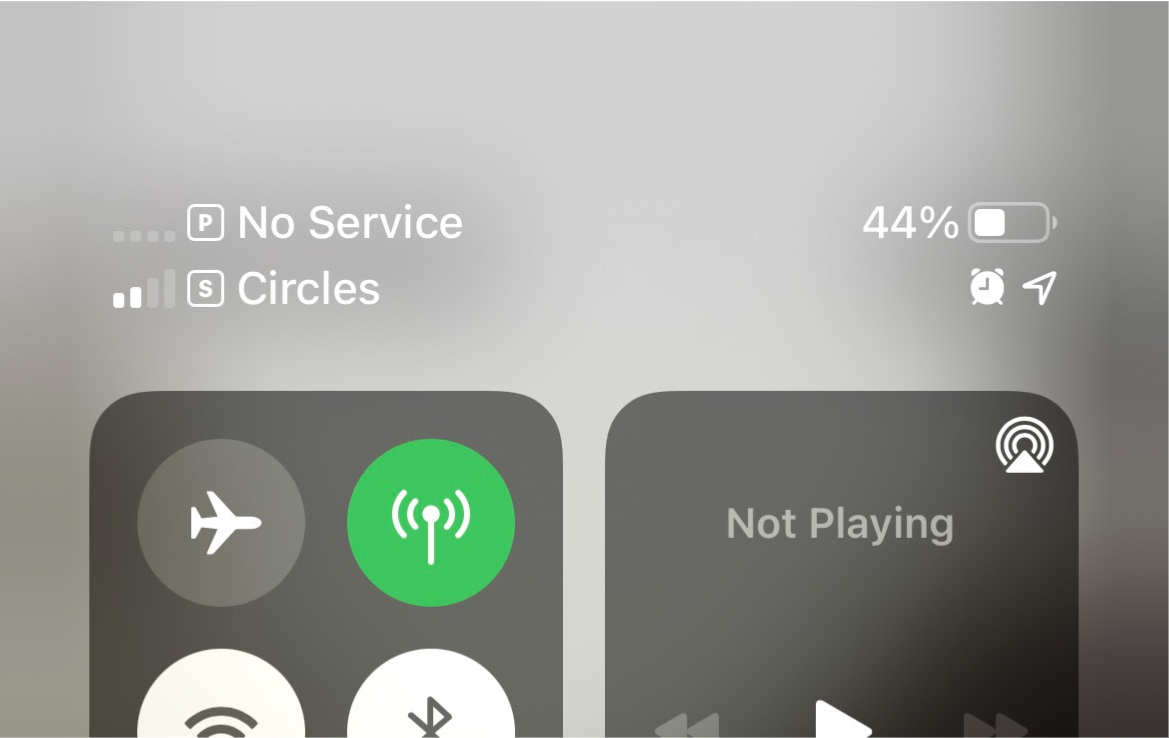
On iPhone, you are able to name your SIM cards, such as primary (P), secondary (S), and so on.
Example: Here, on the top left hand corner, you can see that the secondary (S) eSIM is active, and primary (P) physical SIM is inactive.
SECTION 3: TURN ON YOUR ESIM WHEN YOU ARE TRAVELLING
3.1 Turn on the Data Plan
Step 1: Go to “Settings” > “Mobile Data” > Select the new eSIM Data Plan and ensure that the new eSIM Data Plan is toggled “On”.
3.2 Turn on Data Roaming
Step 1: Go to “Settings” > “Mobile Data” > select the new eSIM Data Plan under "SIMs" or “Data Plans”.
Step 2: Ensure that the “Data Roaming” option is toggled "On".
3.3 (Optional) Check the Network Connection
Step 1: As the eSIM will automatically latch onto a supported network, if you would like to choose a network of your preference, go to "Network Selection" and choose from the list of supported networks found here.
Comments
0 comments
Please sign in to leave a comment.